 Kakuchi
Everything you check, one key away
Press Control twice and keep holding. Your widgets come up over any window, full-screen apps included. Let go and they're gone, and you never left what you were doing.
Tap, hold, let go
- 01Press ⌃ twice
A quick tap on Control, then press it again.
- 02Keep holding
Your widgets fade in over everything, on every display. Click them like you always do.
- 03Let go
They fade away. The app you were in never lost focus.
Small key, big view
A call, a film, a game, a deadline. Glance comes up on top of all of it.
Out of the box, Glance shows the widgets on your desktop, right where you put them.
Hit Customize to move, resize, add or remove widgets just for Glance. Your desktop stays as it is.
Click a widget and the app you were in stays in front, with your cursor right where you left it.
Each screen shows its own glance, at the same time.
Between glances its widgets are paused, so nothing extra runs in the background.
No Accessibility or Input Monitoring prompts. It watches modifier keys, never what you type.
Rather hold a key combo? Pick any shortcut with ⌘, ⌃ or ⌥ in Settings.
Make it its own
Glance starts as a copy of your desktop. Click Customize and it stays open, so you can shape it into a second screen of widgets.
- Add Widget brings in any widget, even ones that aren't on your desktop.
- Drag and resize like on the desktop. Right-click to remove.
- Reset to Desktop puts it back the way it started.
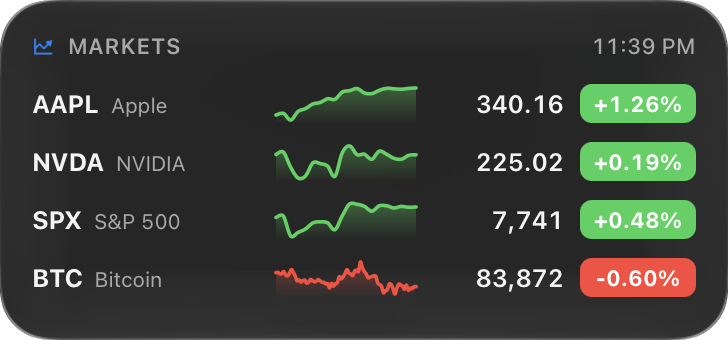
Stay where you are
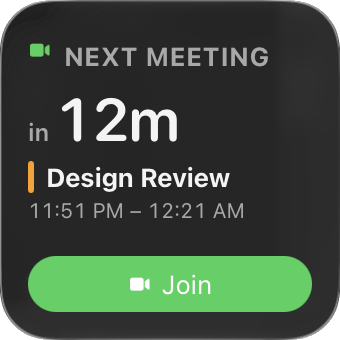
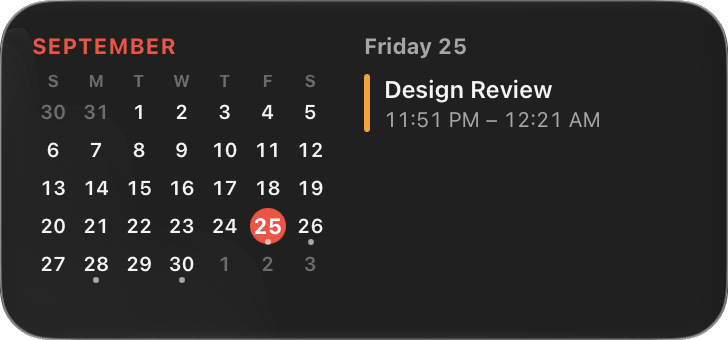
See what's next on your calendar and how long you have, without leaving the call.
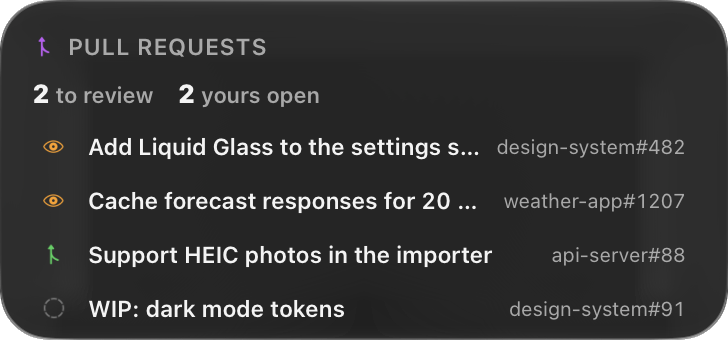
Check your pull requests and builds, then get straight back to the code.
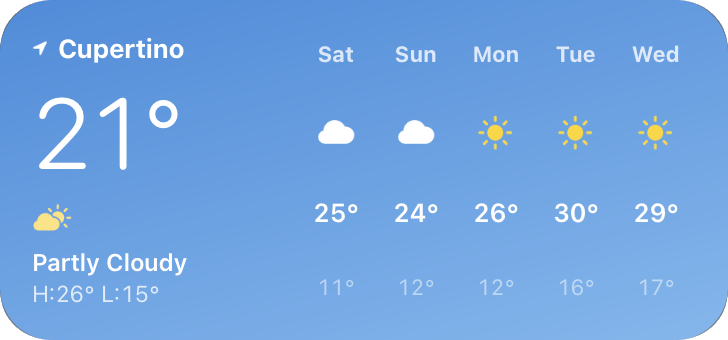
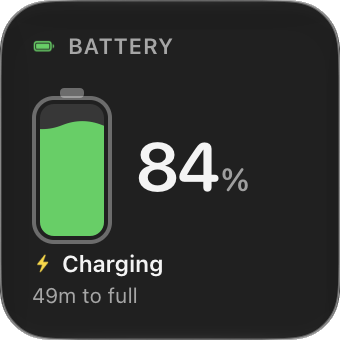
Scores, weather, battery. A glance, and you never pressed pause.
Questions
- What is Glance?
- A layer of widgets you call up with a key. Press Control twice and keep holding to see it. Let go to hide it.
- Does it change my desktop?
- No. Glance starts as a copy of your desktop. Once you customize it, it keeps its own widgets, spots and sizes, and your desktop stays the same.
- What if I double-tap Control by accident?
- A double tap alone does nothing. Glance only opens while you hold the second press, and never if you typed a key in between, so shortcuts like ⌃C ⌃C won't trigger it.
- Can I use a different key?
- Yes. In Settings › General › Glance, choose Holding a shortcut and record any combo with ⌘, ⌃ or ⌥.
- How do I customize it?
- Click Customize at the bottom of a glance, or in Settings › General › Glance. Drag and resize widgets, add any widget, right-click one to remove it, then click Done. Reset to Desktop starts over.
- Does it need any permissions?
- No. Kakuchi doesn't ask for Accessibility or Input Monitoring for Glance.