 Kakuchi












Places
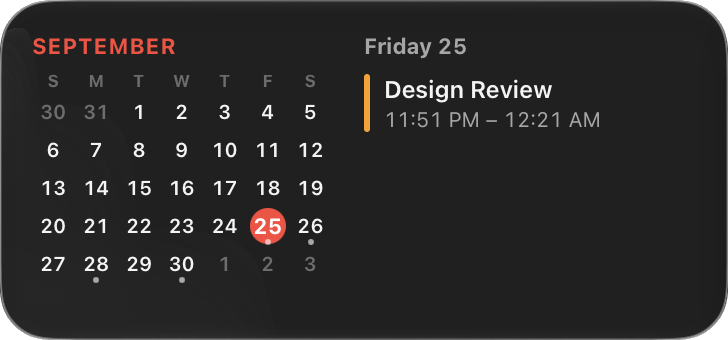
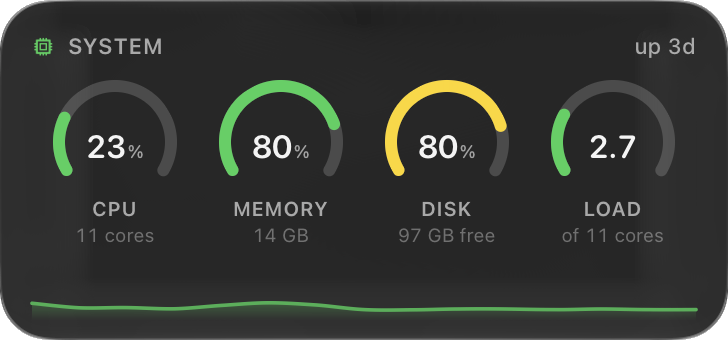
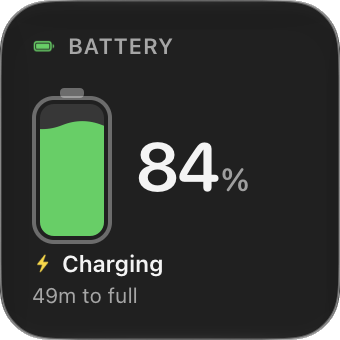
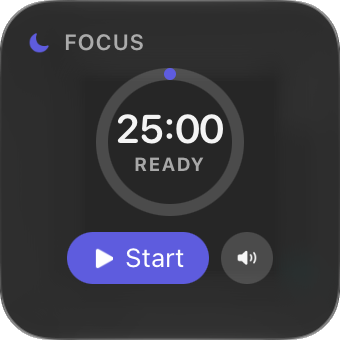
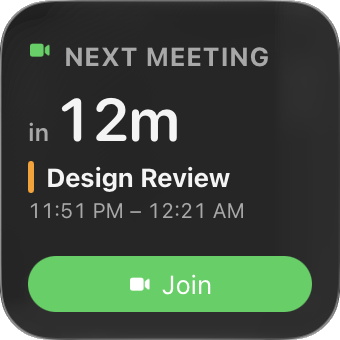
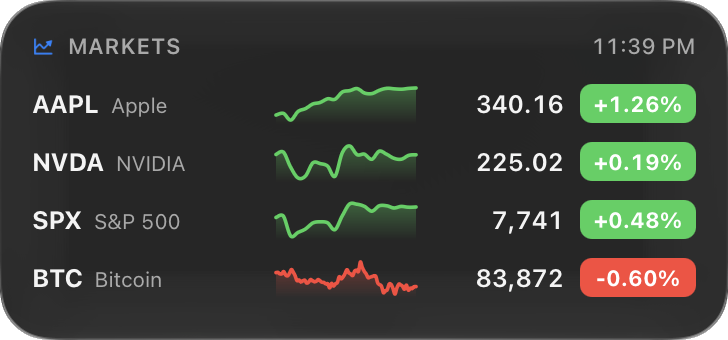
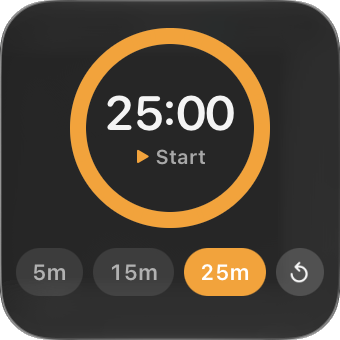
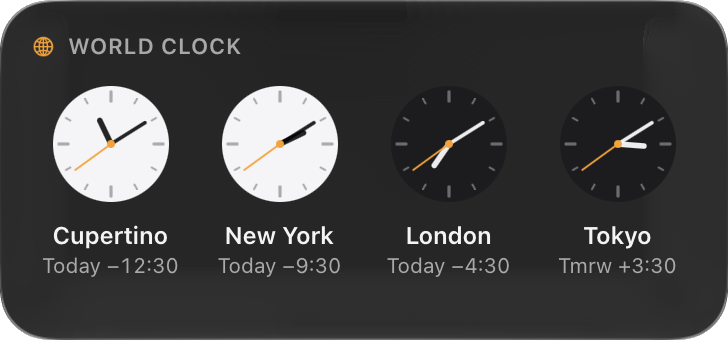
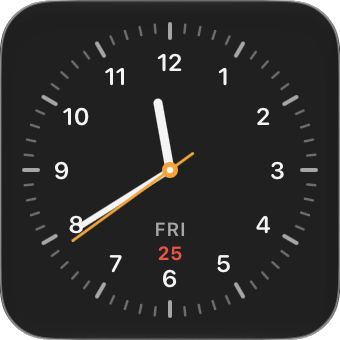
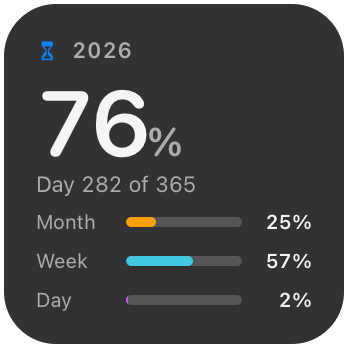
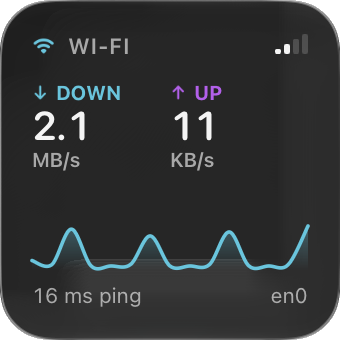
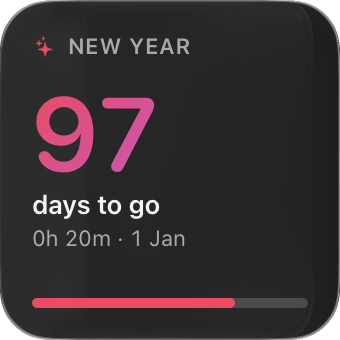
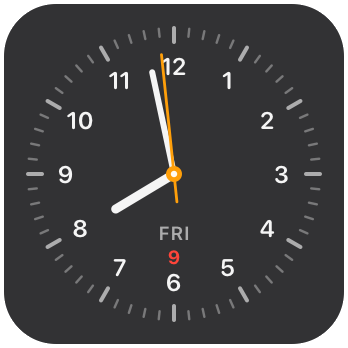
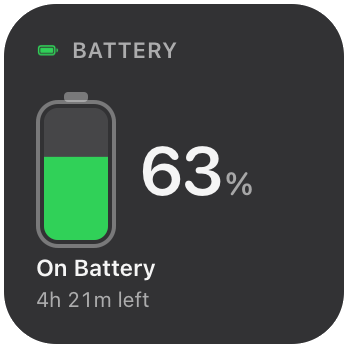
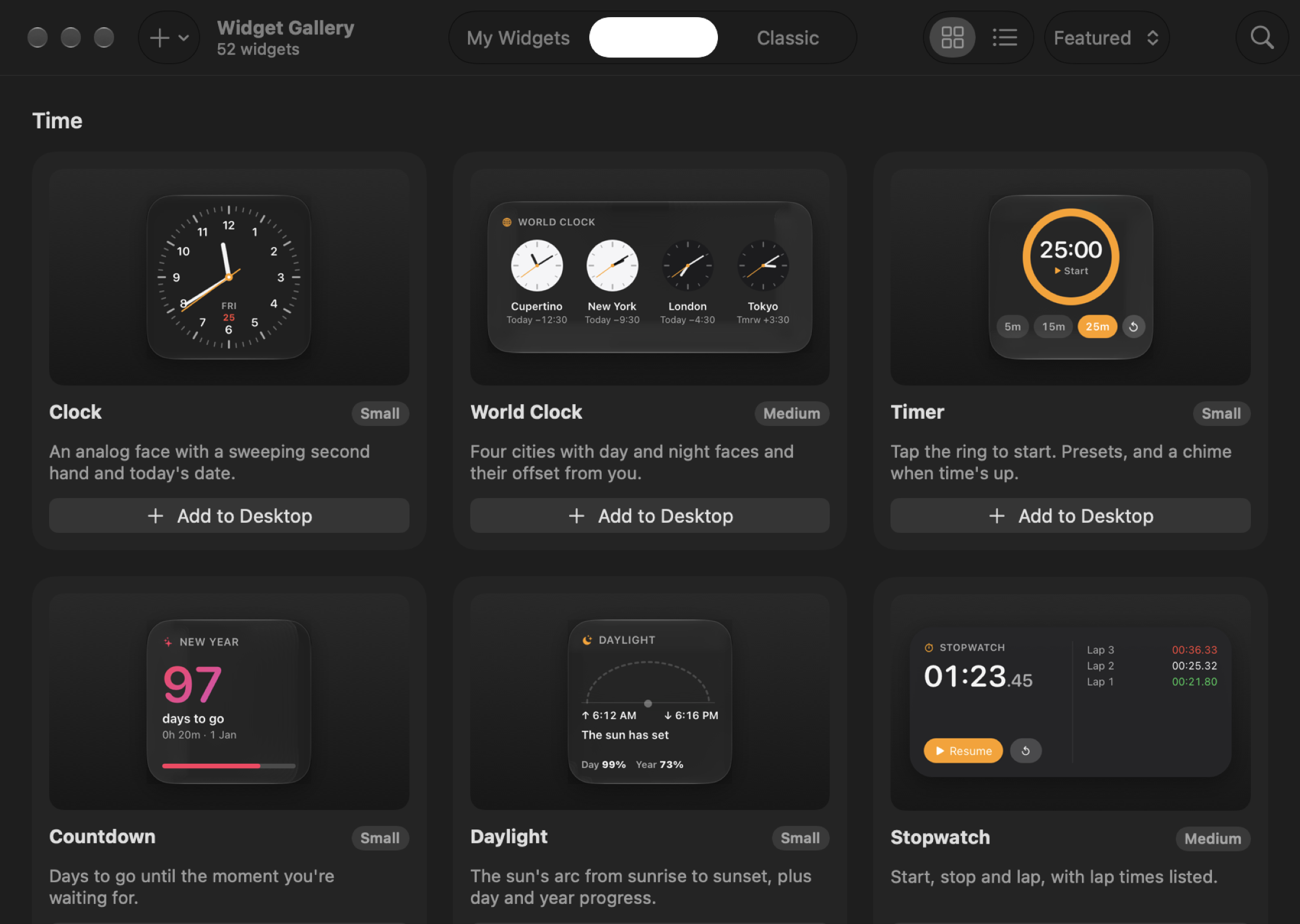
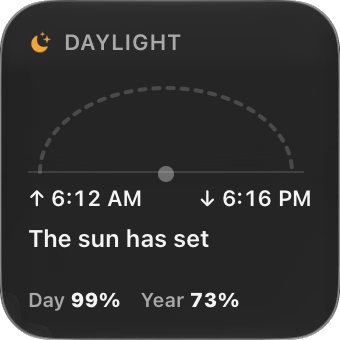
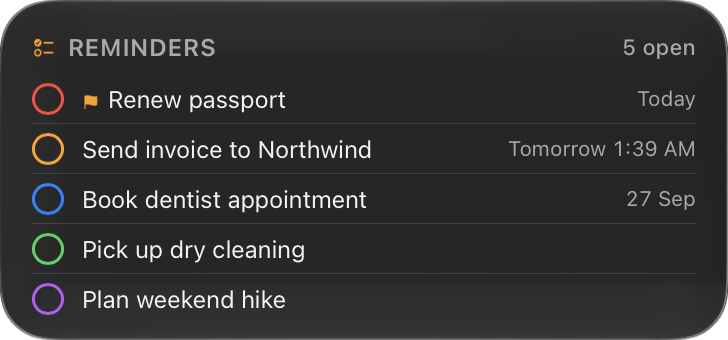
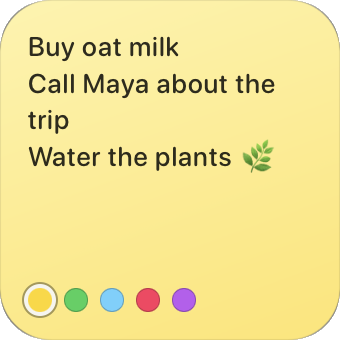
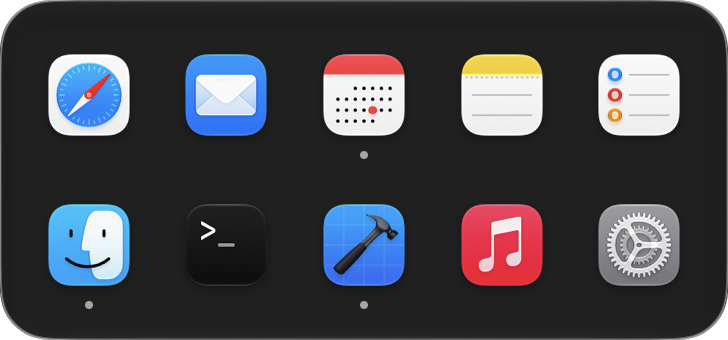
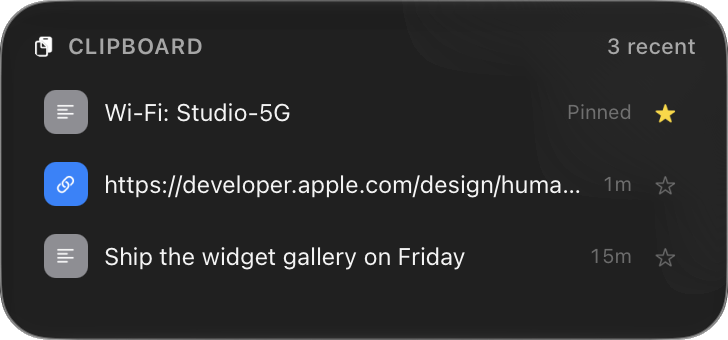
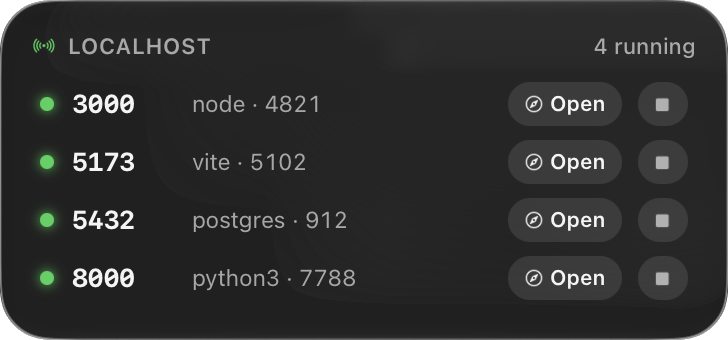
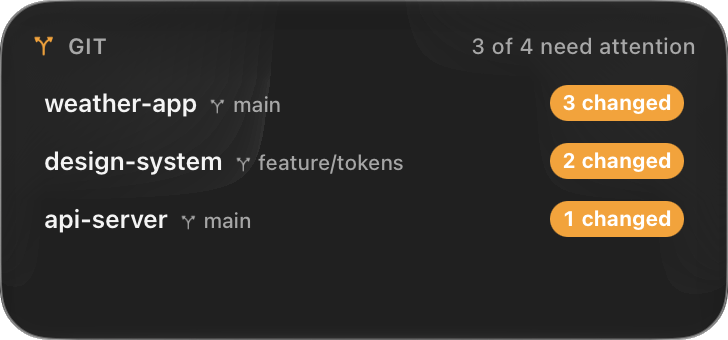
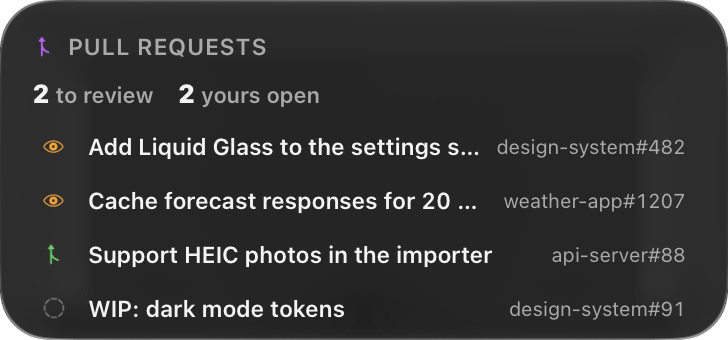
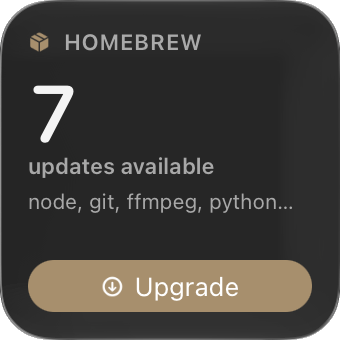
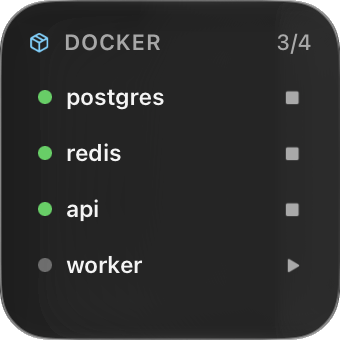
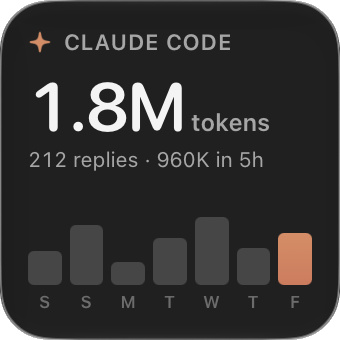
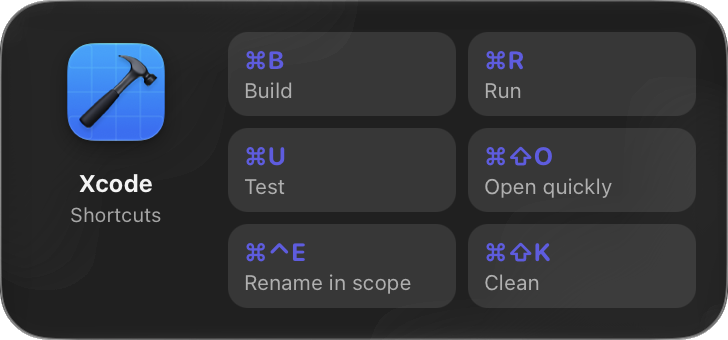
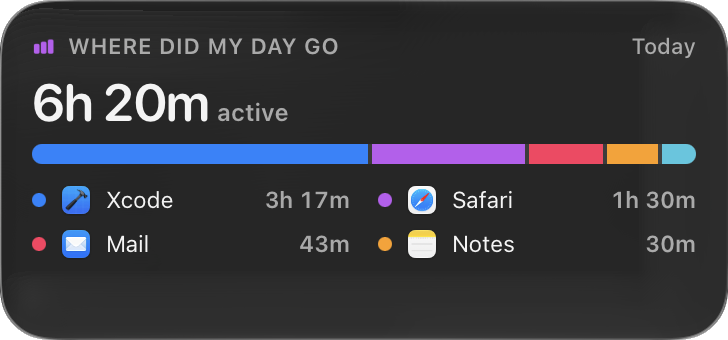
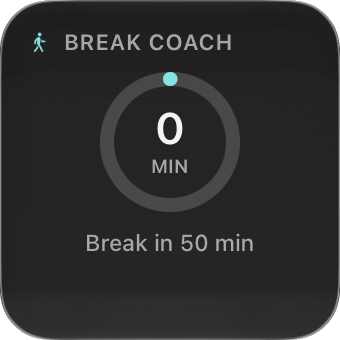
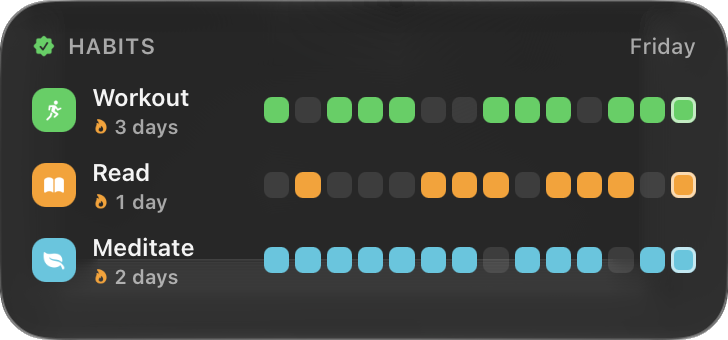
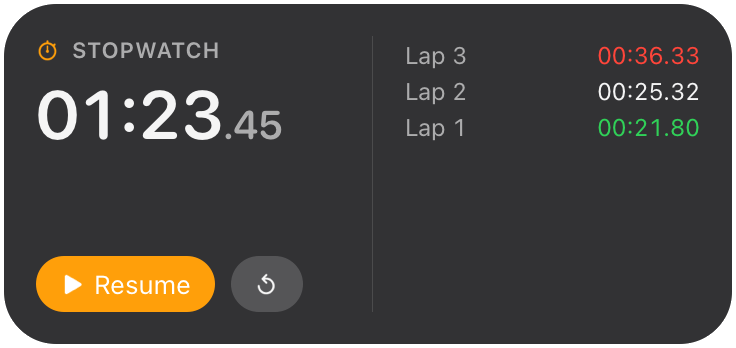
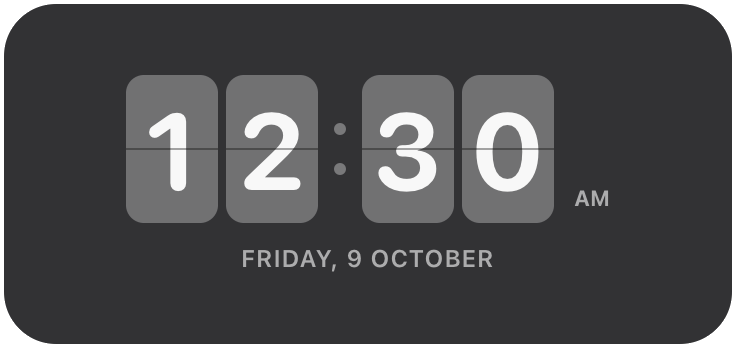
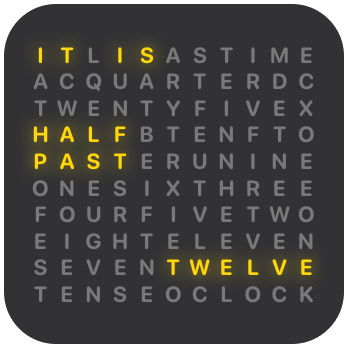
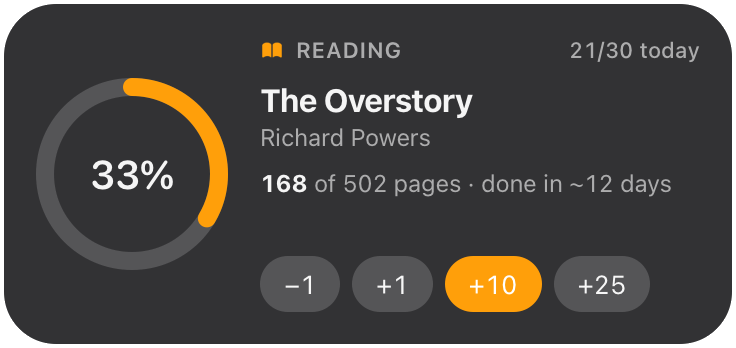
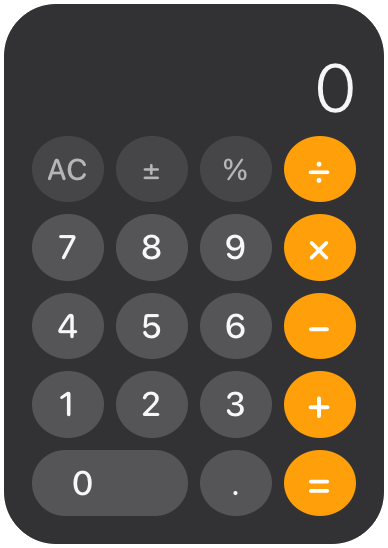
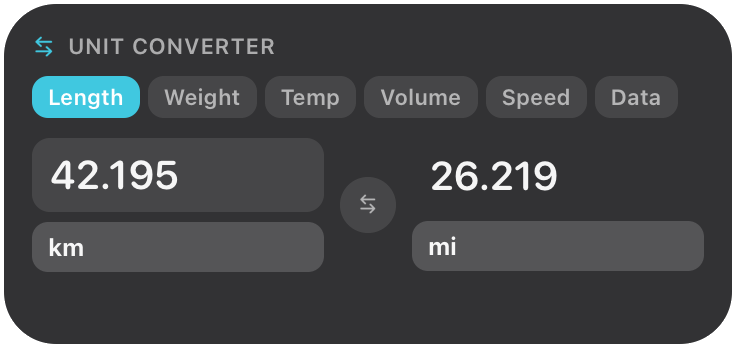
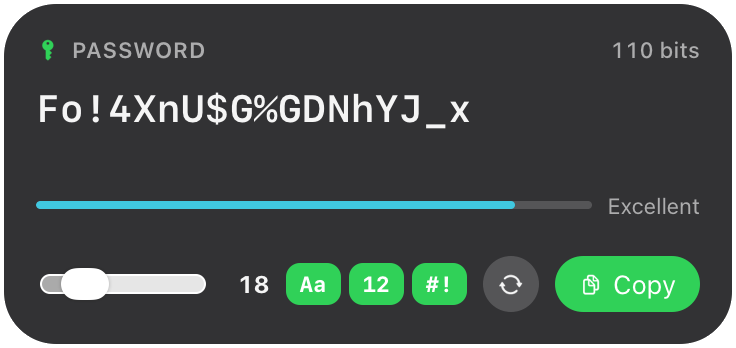
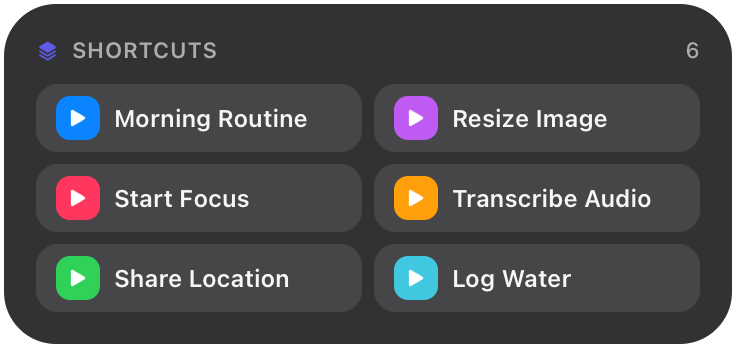
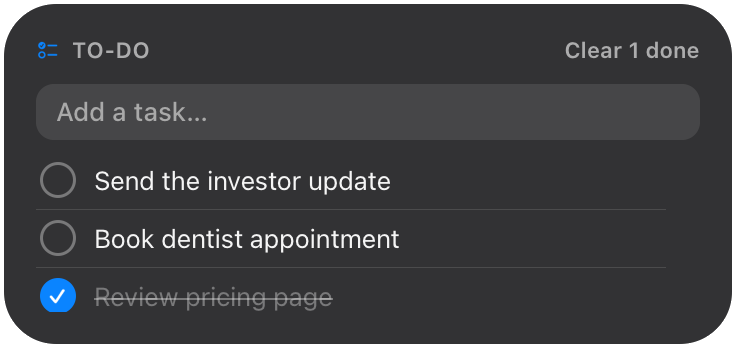
Six places for a widget
Every widget can live in any of them, and keeps its settings when you move it.
- Desktop: under every window, and it stays put through Space switches, full-screen apps, sleep and restarts.
- Notch: point at it and a shelf slides down. With several widgets, small icons below switch between them.
- Notch sizes: small, medium or large, with every widget fitted into it separately from its desktop size.
- No notch? The shelf opens from the same spot at the top centre of the screen.
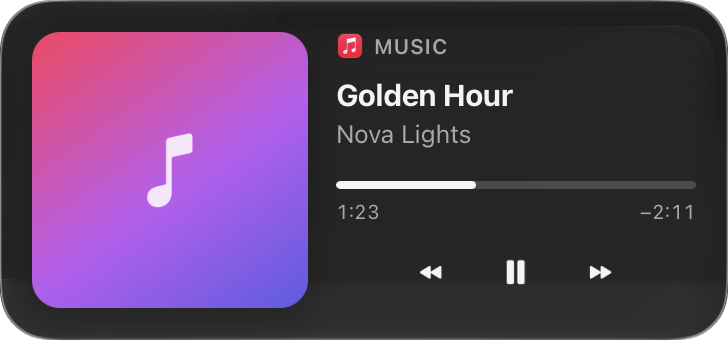
- Now Playing in the notch: album art and a moving equalizer beside it while Music or Spotify plays.
- Menu bar: any widget can become a menu bar item, and a click opens the full widget.
- Lock screen: your widgets above the password field. Their buttons work. Off by default, since anyone at your Mac can see them.
- Keep on top: pin a widget above every window, including full-screen apps and calls.
- It fades when your pointer comes close, so it never blocks what you're doing (you can turn that off per widget).
- Edge docking: flick a pinned widget at the left or right edge and it docks, picture-in-picture style. A tab brings it back.